Voice System
Why we explain this #
The Voice UI needs your microphone to work. That’s obvious. What’s less obvious is what happens with your audio once the microphone is on — and we think you deserve to know exactly how it works before you trust a system with an always-listening microphone.
Here’s the short version: your audio never leaves your server. Magec processes everything on your own hardware. There’s no cloud relay, no third-party listening service, no “anonymous audio samples sent for improvement.” The microphone stream goes from your browser to your Magec server over a WebSocket, gets analyzed by local AI models running on your server, and that’s it.
But let’s be more specific, because “trust us” isn’t good enough:
What actually happens when the microphone is on #
When the Voice UI is active and listening for the wake word, the browser captures tiny audio frames (~32 milliseconds each) and streams them to your Magec server. On the server, two small AI models process these frames:
Wake word detector — Listens for “Oye Magec” or “Magec”. It processes each frame, outputs a probability score, and immediately discards the audio. It doesn’t store, buffer, or forward anything.
Voice activity detector (VAD) — Once activated (by wake word or button press), it detects when you start and stop speaking. Same deal: process, decide, discard.
No audio is recorded until you explicitly activate the system (either by saying the wake word or pressing the button). The continuous stream is purely for detection — the models analyze tiny windows of sound, make a yes/no decision, and throw the audio away.
Only after activation does Magec capture your speech and send it for transcription. And even then, the transcription can happen entirely on your server if you’re using a local deployment.
The full picture #
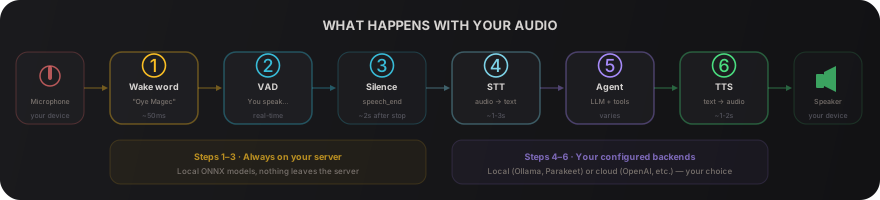
If you use the fully local deployment, every single step happens on your machine. If you use a cloud provider, only the text (never the raw audio) goes to that provider — and only after you’ve spoken and the audio has been transcribed.
We explain the details below not because you need them to use Magec, but because we believe you should be able to verify exactly what your system is doing. Open source means you can read the code. This documentation means you don’t have to.
Wake Word Detection #
The wake word system listens to the audio stream and detects when someone says “Oye Magec” or “Magec”. This enables hands-free activation — you don’t need to press a button to start talking.
Each audio frame passes through three stages: frequency analysis (what sounds are present), pattern matching (does it sound like speech), and classification (is it the wake word). If it matches, the system activates. If not, the frame is discarded and the next one is processed.
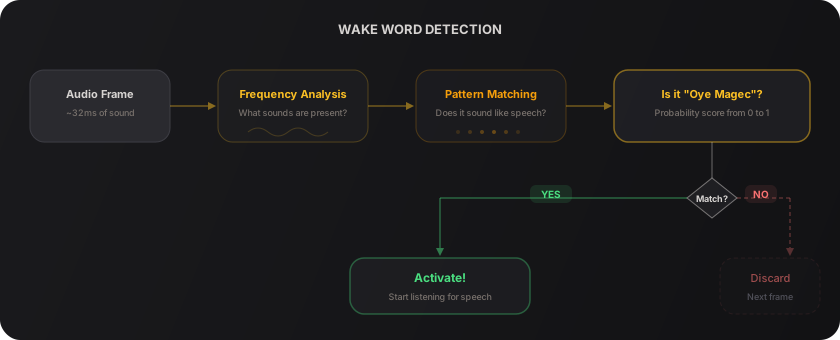
The wake word models were custom-trained for the word “Magec” and the phrase “Oye Magec” with Canarian Spanish pronunciation. They run locally on your server using ONNX Runtime — a lightweight inference engine that works on any hardware without a GPU.
Voice Activity Detection (VAD) #
Once the wake word triggers (or you press the microphone button), the VAD system takes over. It detects when you start and stop speaking, so Magec knows exactly what to send for transcription.
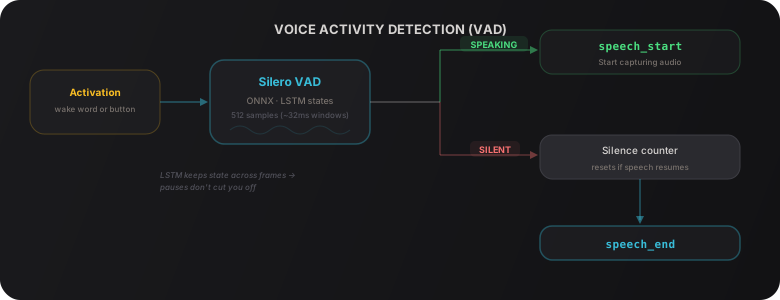
The VAD tracks the speech pattern over time rather than making frame-by-frame decisions. This means it won’t cut you off mid-sentence just because you took a breath — it waits for 2 seconds of real silence before considering your utterance complete.
Speech-to-Text and Text-to-Speech #
Once the VAD determines you’ve finished speaking, the captured audio needs to be converted to text (STT). After the agent processes your message, its response needs to be converted back to audio (TTS). These two steps are where you choose whether to stay local or use a cloud service.
Both STT and TTS are configured per-agent in the agent settings. This means different agents can use different providers — one agent might use a local STT for privacy, while another uses cloud TTS for higher voice quality.
| Local option | Cloud option | |
|---|---|---|
| STT (voice → text) | Parakeet (NVIDIA) — runs in Docker, no data leaves your server | OpenAI Whisper — higher accuracy, sends audio to OpenAI |
| TTS (text → voice) | OpenAI Edge TTS — runs in Docker, many voices available | OpenAI TTS — premium voices, sends text to OpenAI |
Any service that implements the OpenAI-compatible API (/v1/audio/transcriptions for STT, /v1/audio/speech for TTS) will work. You’re not locked into these specific options.
Disabling voice #
If you don’t need the Voice UI or voice features, set voice.ui.enabled: false in your config.yaml:
voice:
  ui:
    enabled: false
This disables the Voice UI, all voice routes (STT proxy, TTS proxy, WebSocket), and wake word model loading. Everything else — Admin UI, API, Telegram, webhooks, cron — continues to work normally.