Telegram
Magec can connect to Telegram through a bot. Users send text or voice messages to the bot, and the bot responds using your configured agents. It supports multiple response modes, per-chat agent switching, and voice messages in both directions.
This is a great way to access your agents from anywhere — your phone, desktop, or any Telegram client — without opening the Voice UI or writing API calls.
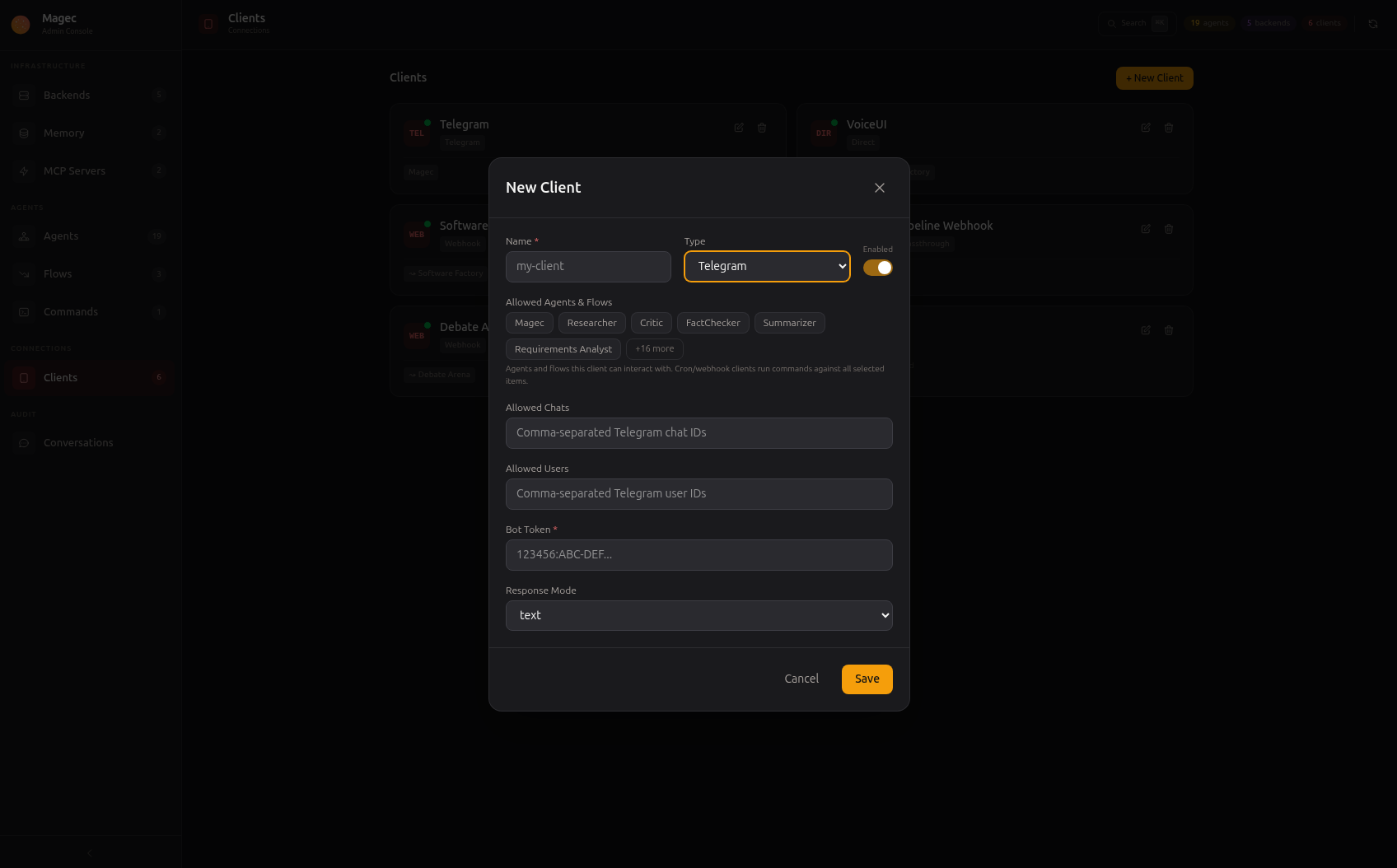
Setup #
1. Create a Telegram bot #
Open Telegram and talk to @BotFather:
- Send
/newbot - Choose a name (e.g., “My Magec Assistant”)
- Choose a username (e.g.,
my_magec_bot) - BotFather gives you a token — copy it
2. Get your user ID #
Talk to @userinfobot — it replies with your Telegram user ID (a number). You’ll need this to restrict who can use your bot.
3. Create a Telegram client in Magec #
In the Admin UI, go to Clients → New → Telegram:
| Field | Description |
|---|---|
name | Display name for this client |
botToken | The token from BotFather |
allowedUsers | Comma-separated list of Telegram user IDs that can use this bot |
allowedChats | Comma-separated list of chat IDs where the bot can respond (for group chats) |
responseMode | How the bot responds — see below |
allowedAgents | Which agents and flows this bot can access |
4. Start chatting #
Open your bot in Telegram and send a message. The bot responds using the first allowed agent.
Response modes #
The response mode controls the format of the bot’s replies:
| Mode | Behavior |
|---|---|
text | Always respond with text (default). Simple and reliable. |
voice | Always respond with a voice message. Requires the agent to have TTS configured. |
mirror | Mirror the user’s format — text replies to text, voice replies to voice messages. |
both | Respond with both a text message and a voice message. |
Users can change the response mode at runtime with the /responsemode command.
Voice messages #
Telegram voice messages work in both directions:
Incoming voice: When a user sends a voice message, Magec:
- Downloads the audio from Telegram
- Converts it from OGG to WAV (using ffmpeg inside the container)
- Sends it to the agent’s STT backend for transcription
- The agent processes the transcribed text and responds
Outgoing voice: When the response mode requires voice, Magec:
- Sends the agent’s text response to the TTS backend
- Gets the audio back
- Sends it as a Telegram voice message
This means you can have a fully voice-based conversation through Telegram — speak a question, hear the answer.
Bot commands #
| Command | Description |
|---|---|
/start | Welcome message |
/help | List available commands |
/agent | Switch the active agent for this chat |
/responsemode <mode> | Change the response mode (text, voice, mirror, both, reset) |
The /agent command shows a list of all agents and flows the bot has access to. Select one and all subsequent messages in that chat go to the selected agent. Different chats can use different agents simultaneously.
Context metadata #
When a message arrives from Telegram, Magec injects metadata about the source — the Telegram user ID, username, display name, and chat ID. This information is available to the agent as part of the message context. You can use this in system prompts to personalize responses (e.g., “Address the user by their first name when available”).
Security #
allowedUsers and/or allowedChats to control who can use your bot. Without restrictions, anyone who discovers your bot’s username can interact with your agents — and through them, any MCP tools those agents have access to.If a user not in the allowed list tries to message the bot, the message is silently ignored. The same applies for chats not in the allowed chats list.
Multiple bots #
You can create multiple Telegram clients, each with its own bot, its own set of allowed users, and its own agent access. For example:
- A personal bot with full access to all agents, restricted to your user ID
- A team bot with access to specific work agents, restricted to team member IDs
- A customer bot with access to a customer service agent, available to specific chat groups