Slack
Magec can connect to Slack through a bot. Users send text or voice messages to the bot in DMs or @mention it in channels, and the bot responds using your configured agents. It supports multiple response modes, per-channel agent switching, and voice messages via audio clips. No public URL needed — the bot connects outward using Slack’s Socket Mode.
This is ideal for teams already on Slack who want to interact with their agents without leaving their workspace.
Setup #
1. Create a Slack App #
Go to api.slack.com/apps and create a new app:
- Click Create New App → From scratch
- Name it (e.g., “Magec Assistant”) and select your workspace
- Under Socket Mode, enable it — Slack generates an App Token (
xapp-...). Copy it. - Under OAuth & Permissions, add these Bot Token Scopes:
app_mentions:read— receive @mentions in channelschannels:history— read messages in public channels (thread context)chat:write— send messagesfiles:read— download audio clips and file attachmentsfiles:write— upload voice response filesgroups:history— read messages in private channels (thread context)im:history— read DM messagesim:read— access DM conversationsim:write— send DMsmpim:history— read messages in group DMs (thread context)reactions:write— add emoji reactions to messages (progress indicators)users:read— look up user info (name, display name)users:read.email— access user email addresses
- Under Event Subscriptions, enable events and subscribe to:
app_mention— triggers when someone @mentions the botmessage.im— triggers on direct messages to the bot
- Under App Home:
- Enable “Allow users to send Slash commands and messages from the messages tab” — required for users to DM the bot
- Enable “Show My Bot as Online” — shows a green presence dot when the Magec server is running
- Install the app to your workspace — copy the Bot Token (
xoxb-...)
2. Get your user ID #
In Slack, click on your profile → Copy member ID. You’ll need this to restrict who can use the bot.
3. Create a Slack client in Magec #
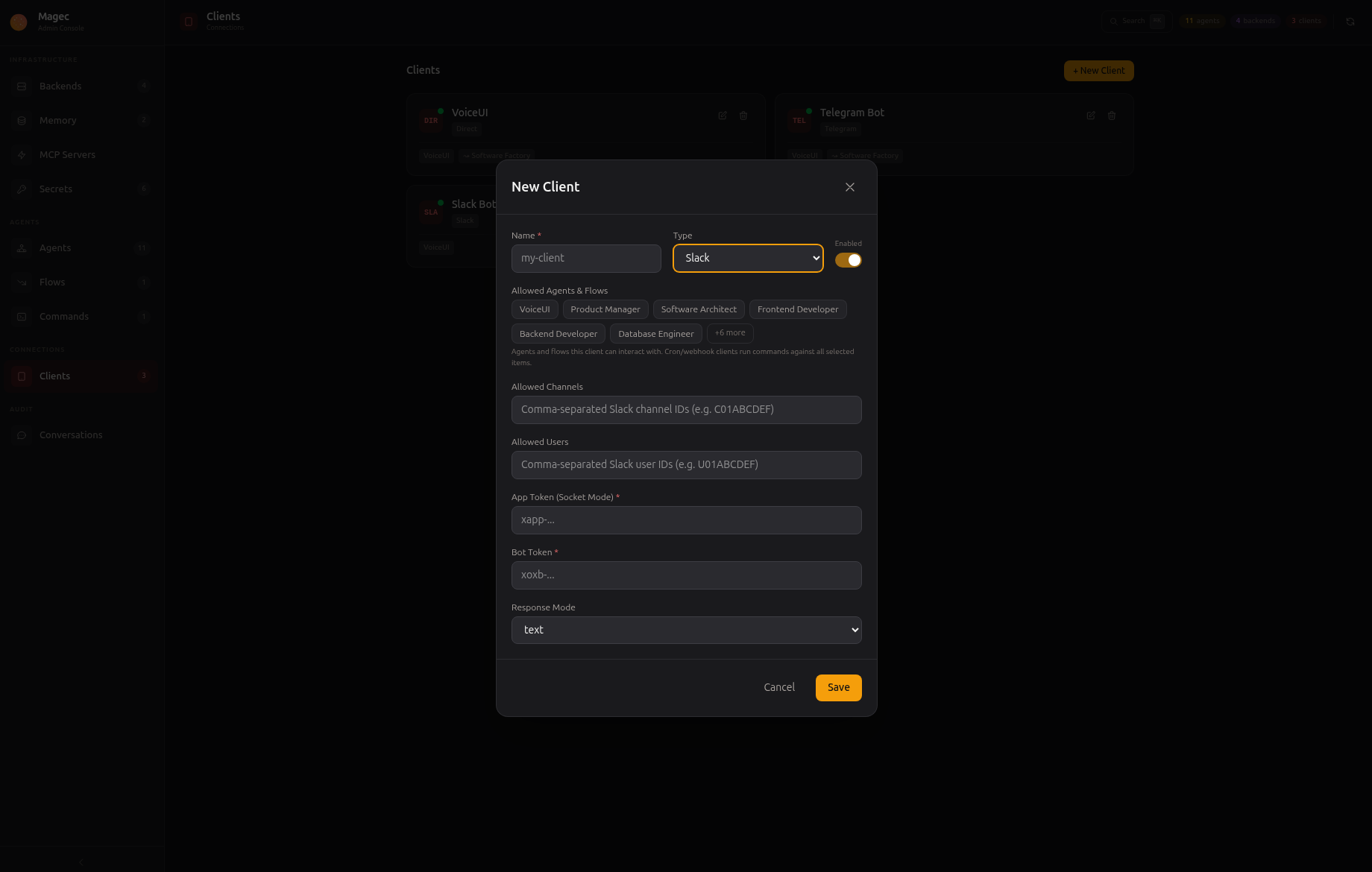
In the Admin UI, go to Clients → New → Slack:
| Field | Description |
|---|---|
name | Display name for this client |
botToken | The Bot Token from OAuth & Permissions (xoxb-...) |
appToken | The App Token from Socket Mode settings (xapp-...) |
allowedUsers | Slack user IDs that can use this bot (empty = everyone in the workspace) |
allowedChannels | Slack channel IDs where the bot can respond (empty = all channels) |
responseMode | How the bot responds — see Response modes |
allowedAgents | Which agents and flows this bot can access |
4. Start chatting #
Open a DM with the bot or @mention it in a channel. It responds using the first allowed agent.
How it works #
Magec uses Slack’s Socket Mode — the bot opens a WebSocket connection to Slack’s servers. This means:
- No public URL needed — works behind firewalls, NATs, on your local machine
- No webhook setup — no need to expose ports or configure SSL certificates
- Outbound only — the bot connects outward, nothing connects inward
This fits Magec’s self-hosted approach: everything runs on your infrastructure with no external dependencies.
Interaction modes #
| Context | How it works |
|---|---|
| Direct Messages | Send any message (text or audio clip) to the bot. It responds in the DM. Bot commands like !help and !agent work here. |
| Channel @mentions | @mention the bot in a channel. It responds in a thread under your message. |
Response modes #
The response mode controls the format of the bot’s replies:
| Mode | Behavior |
|---|---|
text | Always respond with text (default) |
voice | Always respond with a voice file (requires TTS configured on the agent) |
mirror | Match the user’s format — text replies to text, voice replies to audio clips |
both | Respond with both text and a voice file |
Users can override the default at runtime with the !responsemode command.
Voice messages #
Audio clips work in both directions:
Incoming: When a user sends an audio clip, Magec:
- Downloads the audio file from Slack (M4A format)
- Converts it to WAV using ffmpeg
- Sends it to the agent’s STT backend for transcription
- Passes the transcribed text to the agent and returns the response
Outgoing: When the response mode includes voice (voice, mirror, both), Magec:
- Sends the agent’s text response to the TTS backend
- Receives the generated audio
- Uploads it as a file in the conversation
Bot commands #
Commands use the ! prefix and work in DMs only:
| Command | Description |
|---|---|
!help | List available commands |
!agent | Show the current agent and list all available ones |
!agent <id> | Switch to a different agent |
!responsemode | Show the current response mode |
!responsemode <mode> | Change response mode (text, voice, mirror, both, reset) |
The !agent command lists all agents and flows the bot has access to. Each channel or DM can use a different agent independently.
Using !responsemode reset reverts to the default configured in the Admin UI.
Context metadata #
Magec injects metadata about each incoming Slack message into the agent context via MAGEC_META. You can reference these fields in system prompts to personalize responses:
| Field | Description |
|---|---|
source | Always "slack" |
slack_user_id | Slack user ID of the sender |
slack_username | Slack handle |
slack_name | Display name |
slack_email | Email address (requires users:read.email scope) |
slack_channel_id | Channel or DM conversation ID |
slack_channel_type | "im" for DMs, "channel" for mentions |
slack_team_id | Workspace ID |
slack_thread_ts | Thread timestamp (channel mentions only) |
Thread Context #
When you @mention the bot inside a thread, it automatically reads up to 20 previous messages from that thread and includes them as context for the agent. This means the agent can see what other users said in the thread — not just messages directed at the bot.
This only applies to actual threads in channels. In DMs and top-level channel messages, thread context is not injected — the agent relies on its own session history.
The required scopes for this feature (channels:history, groups:history, mpim:history) are already listed in the setup section above.
Security #
allowedUsers and/or allowedChannels to control who can interact with the bot. Without restrictions, anyone in your workspace who can DM the bot or invite it to a channel can talk to your agents — and use any MCP tools those agents have access to.Messages from users or channels not in the allowed lists are silently ignored.
Multiple bots #
You can create multiple Slack clients, each with its own bot, allowed users, and agent access. For example:
- A personal bot with full access to all agents, restricted to your user ID
- A team bot with access to work agents, restricted to a team channel
- An ops bot with access to infrastructure agents, restricted to the ops channel
Differences from Telegram #
| Feature | Slack | Telegram |
|---|---|---|
| Connection | Socket Mode (WebSocket) | Long polling |
| Voice format | Audio clips (M4A → WAV) | Native voice (OGG → WAV) |
| Commands | ! prefix (!help, !agent) | Slash commands (/help, /agent) |
| Channel replies | @mention → thread reply | Group messages with bot commands |
| Voice responses | Uploaded audio file | Native voice message |
| Response modes | text, voice, mirror, both | text, voice, mirror, both |