MCP Tools
MCP (Model Context Protocol) is what transforms your agents from chatbots into genuinely useful assistants. Without tools, an agent can only generate text. With MCP tools, an agent can do things — control your lights, read files, query databases, manage GitHub repositories, search the web, send messages, and anything else you can imagine.
This is the mechanism that makes the difference between “a chat interface” and “an AI platform that actually interacts with the real world.”
What is MCP #
Model Context Protocol is an open standard for connecting AI models to external tools. It defines how an agent discovers what tools are available, what parameters they accept, and how to call them. Magec acts as an MCP client — you point it at MCP servers, and the tools those servers provide become available to your agents.
The ecosystem is large and growing. There are MCP servers for:
- Smart home — Home Assistant, controlling lights, thermostats, locks, cameras
- Development — GitHub, GitLab, filesystem access, Docker, Kubernetes
- Data — PostgreSQL, MySQL, MongoDB, Elasticsearch, Google Sheets
- Communication — Slack, Discord, email, SMS
- Productivity — Google Drive, Notion, Todoist, Calendar
- Web — Web search, web scraping, URL fetching
- And hundreds more — Check the MCP servers directory for the full list
When you connect an MCP server to an agent, the agent gains the ability to use all the tools that server provides. The agent decides when and how to use them based on the conversation context and its system prompt.
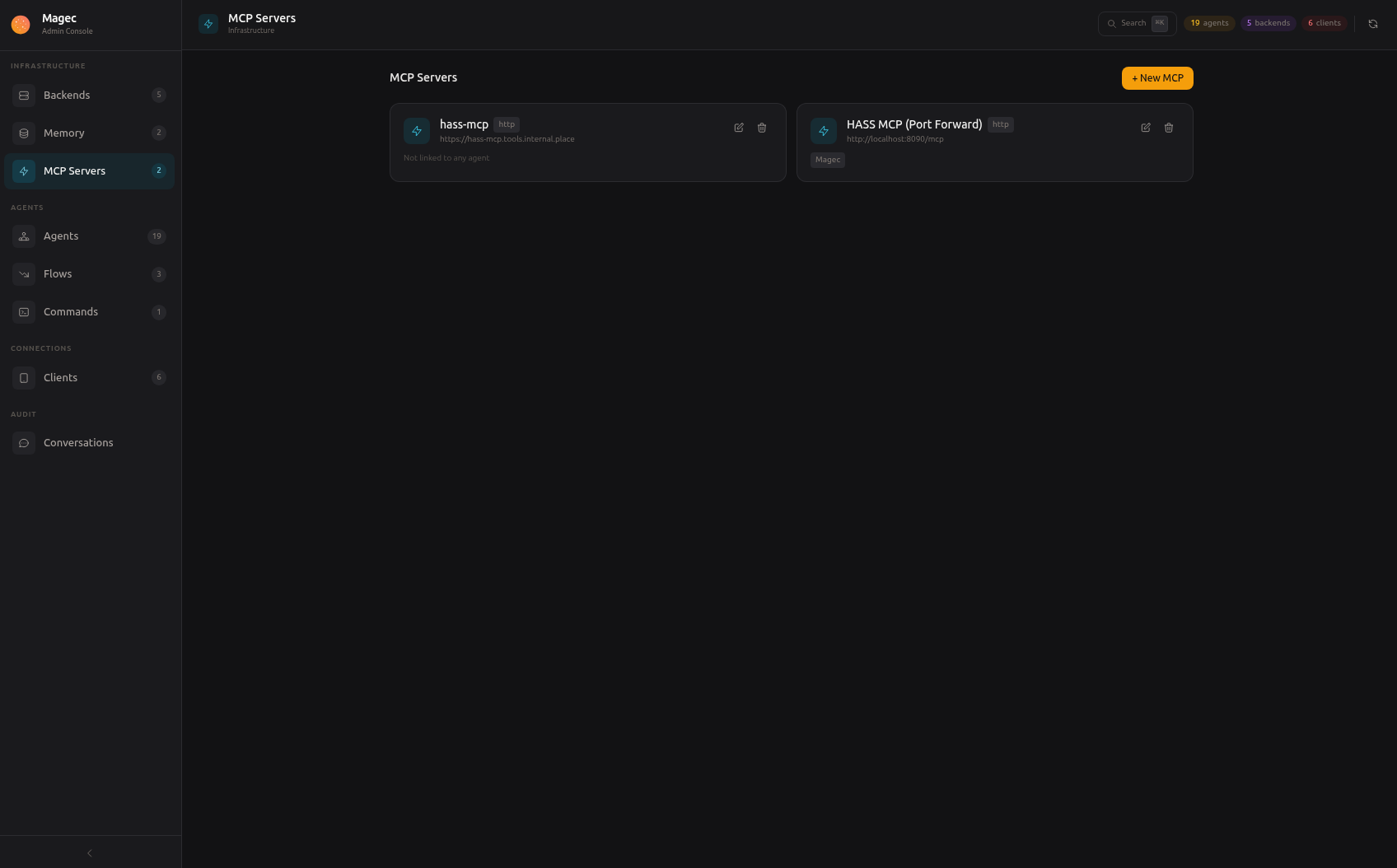
Adding an MCP server #
In the Admin UI, go to MCP Servers and click New. You’ll configure the connection depending on how the MCP server runs.
HTTP transport #
For MCP servers that run as separate services — their own process, a Docker container, a remote server. Magec connects to them over HTTP/SSE (Server-Sent Events).
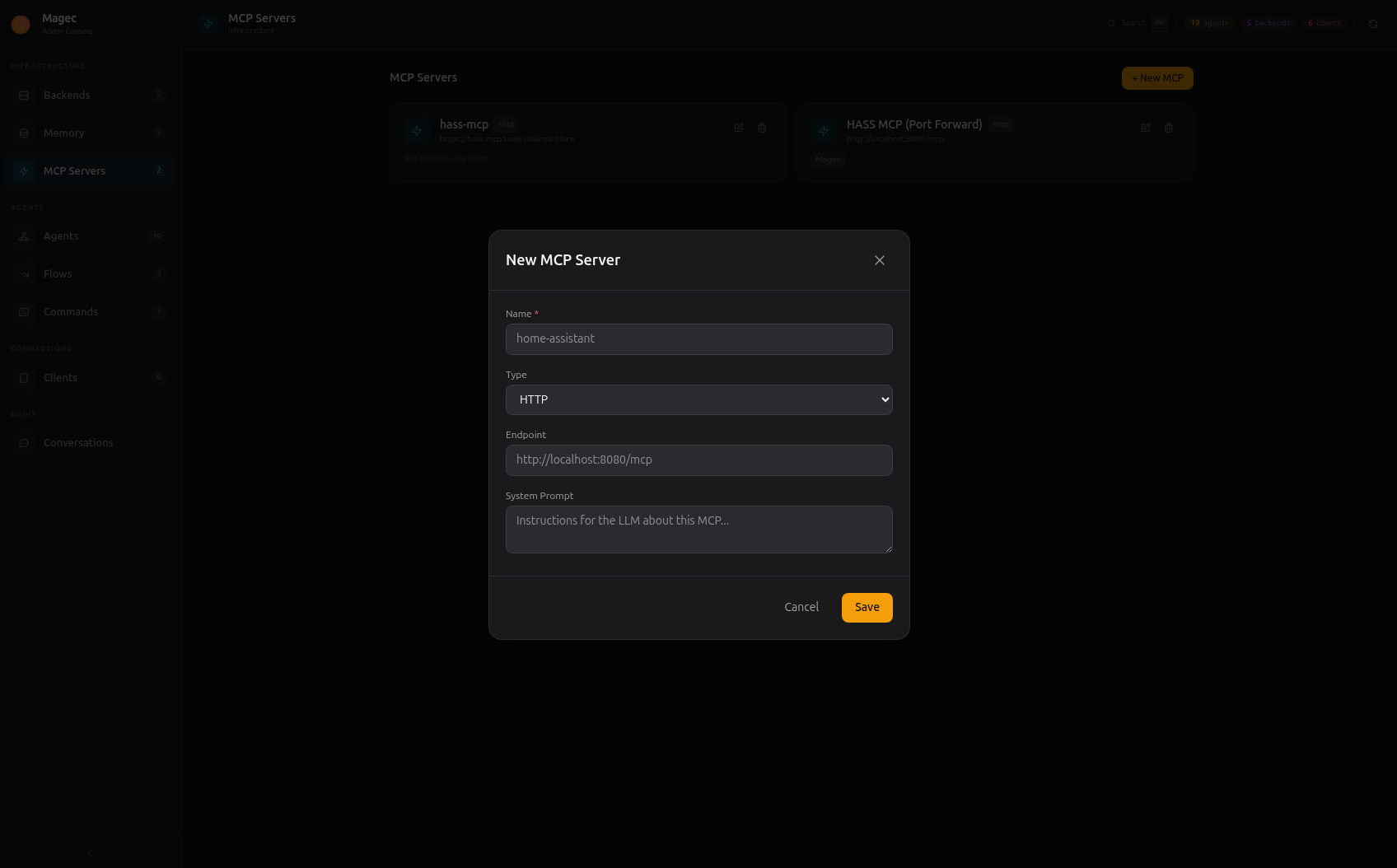
| Field | Required | Description |
|---|---|---|
name | Yes | Display name — appears in agent MCP toggles |
type | Yes | Set to HTTP |
endpoint | Yes | URL of the MCP server — e.g., http://hass-mcp:8080/sse |
headers | No | Custom HTTP headers (e.g., authentication tokens) |
systemPrompt | No | Instructions for the LLM about when and how to use this tool |
Example: Home Assistant MCP
Name:     Home Assistant
Type:     HTTP
Endpoint: http://hass-mcp:8080/sse
Headers:  Authorization = Bearer eyJ0eXAiOi...
Prompt:   "Use these tools to control smart home devices.
           Always confirm destructive actions before executing them."
Stdio transport #
For MCP servers that are command-line tools. Magec launches them as subprocesses and communicates over stdin/stdout. This is perfect for tools distributed as npx, uvx, or local binaries.
Running inside Docker? Stdio transport needs to launch programs like npx or uvx directly on the machine. Inside a container, those tools usually aren’t available.
If you plan to use stdio-based MCP servers, running Magec as a binary is the simplest path. For Docker deployments, prefer MCP servers that support HTTP transport instead.
| Field | Required | Description |
|---|---|---|
name | Yes | Display name |
type | Yes | Set to Stdio |
command | Yes | The binary to execute — e.g., npx, uvx, /usr/local/bin/my-tool |
args | No | Command arguments (comma-separated) — e.g., -y, @modelcontextprotocol/server-filesystem, /data |
env | No | Environment variables for the subprocess |
workDir | No | Working directory for the subprocess |
systemPrompt | No | Instructions for the LLM |
Example: Filesystem MCP (via npx)
Name:    Filesystem
Type:    Stdio
Command: npx
Args:    -y, @modelcontextprotocol/server-filesystem, /home/user/documents
Prompt:  "Use these tools to read and write files.
          Only access files within the /home/user/documents directory."
Example: Python-based MCP (via uvx)
Name:    Web Search
Type:    Stdio
Command: uvx
Args:    mcp-server-web-search
Env:     SEARCH_API_KEY=your-key
Prompt:  "Use this tool when the user asks you to search the web
          or needs current information."
System prompt #
Every MCP server has an optional system prompt field. This text gets injected into the agent’s context when the MCP is enabled for that agent. Use it to guide the LLM on when and how to use the tools:
- “Use these tools to control smart home devices. Always confirm before turning things off.”
- “Only call this tool when the user explicitly asks for file operations.”
- “Use the web search tool when the user needs current information that you don’t know.”
Good system prompts make agents more reliable — they know when to reach for a tool and when to just respond from their own knowledge.
Connecting MCP servers to agents #
After creating an MCP server, you need to enable it on specific agents:
- Open an agent in the Admin UI
- Expand the MCP Servers section
- Toggle on the MCP servers you want this agent to use
- Save
Each agent can have different MCP tools enabled. A “home assistant” agent might have Home Assistant MCP enabled. A “code reviewer” agent might have GitHub MCP. A “research assistant” might have web search and filesystem access. You control the capabilities of each agent individually.
Real-world examples #
Smart home control #
Connect Home Assistant MCP and your agent can:
- “Turn off the living room lights”
- “Set the thermostat to 22 degrees”
- “Is the garage door open?”
- “Dim the bedroom lights to 30%”
This works from the Voice UI (say it), Telegram (text it), or even a cron job (automate it).
Software development #
Connect GitHub MCP and filesystem MCP, and your agent can:
- “Create an issue for the login bug I just described”
- “Show me the last 5 commits on the main branch”
- “Read the README.md file and suggest improvements”
Database queries #
Connect a PostgreSQL or MySQL MCP server, and your agent can:
- “How many users signed up this week?”
- “Show me the top 10 products by revenue”
- “What’s the average response time from the logs?”
The power of combination #
The real magic happens when you combine multiple MCP tools in a single agent, or across agents in a flow:
- An agent with Home Assistant + web search can say “It’s going to rain tonight, so I’ve closed the windows and turned on the heater.”
- A flow with a database agent + report writer + email sender can generate and send daily business summaries automatically.
- An agent with GitHub + filesystem + web search becomes a capable development assistant.
The more tools you connect, the closer you get to having an AI assistant that can actually help with your daily life and work — not just chat about it.