Discord
Magec can connect to Discord through a bot. Users chat with the bot in DMs or @mention it in channels, and the bot responds using your configured agents. It supports text and voice messages, multiple response modes, and per-channel agent switching. No public URL needed — the bot connects outward to Discord.
Setup #
1. Create a Discord Application #
Go to the Discord Developer Portal and create a new application:
- Click New Application
- Name it (e.g., “Magec Assistant”) and accept the terms
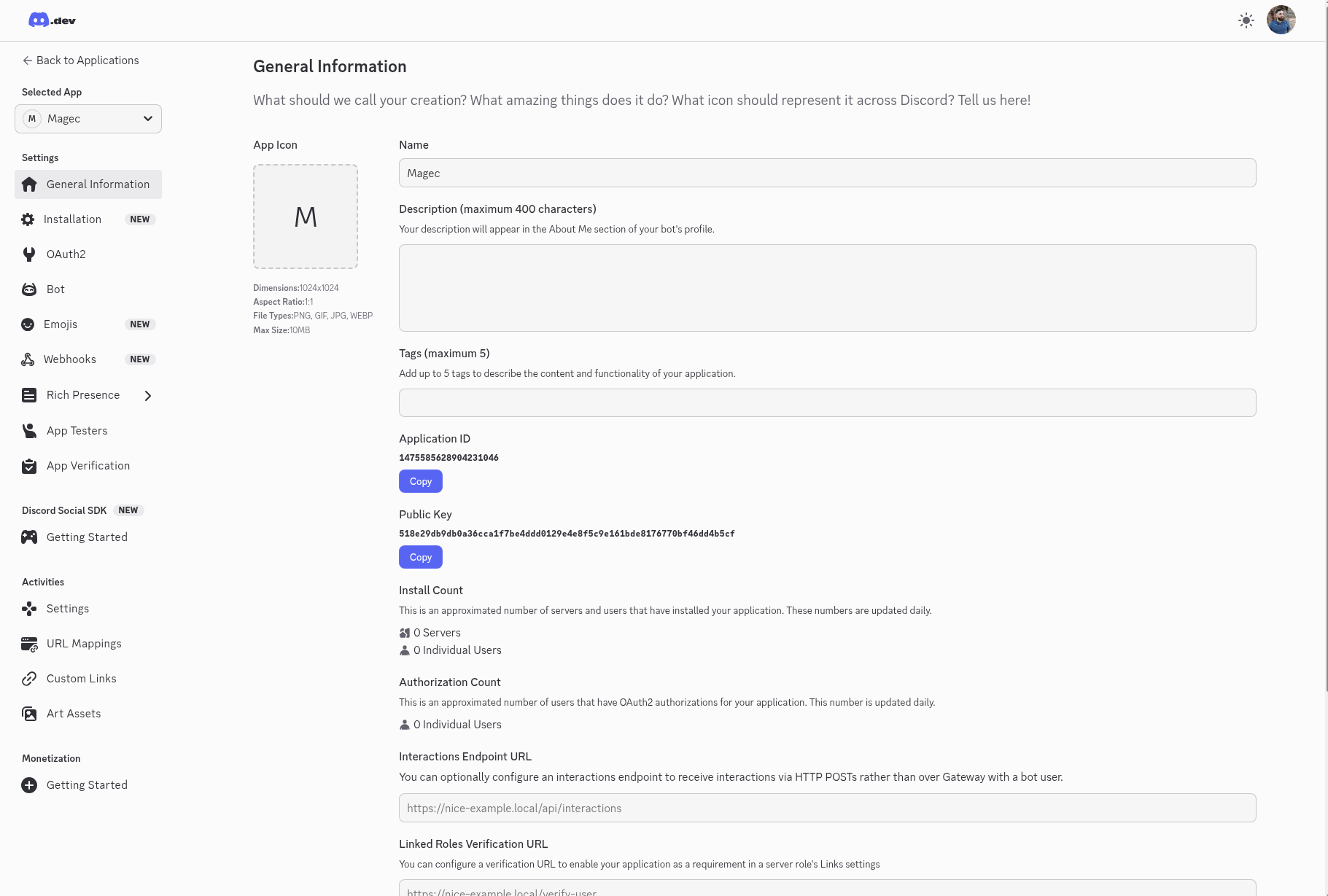
- Copy the Application ID from the General Information page — you’ll need it for the invite URL
2. Configure the Bot #
In the left sidebar, click Bot:
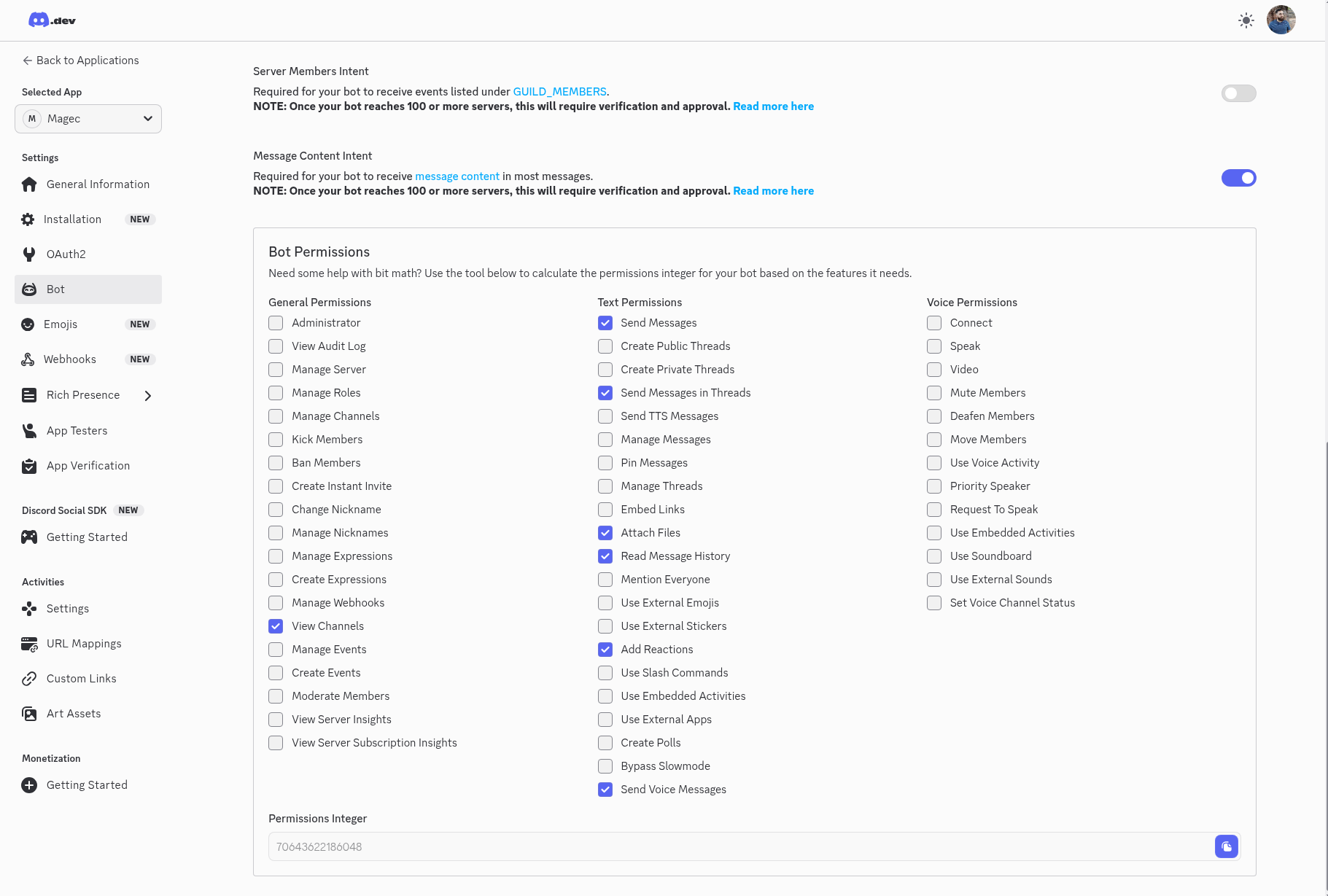
- Click Reset Token to generate a bot token — copy it immediately, you won’t see it again
- Scroll down to Privileged Gateway Intents and enable Message Content Intent
3. Invite the Bot to Your Server #
Use this URL to invite the bot (replace YOUR_APP_ID with your Application ID):
https://discord.com/oauth2/authorize?client_id=YOUR_APP_ID&permissions=70643622186048&scope=bot
Open it in your browser, select your server, and authorize.
Alternatively, go to OAuth2 in the sidebar, select the bot scope, check the permissions from the table below, and use the generated URL.
4. Get Your User ID #
In Discord, go to Settings → Advanced and enable Developer Mode. Then right-click your username anywhere and select Copy User ID.
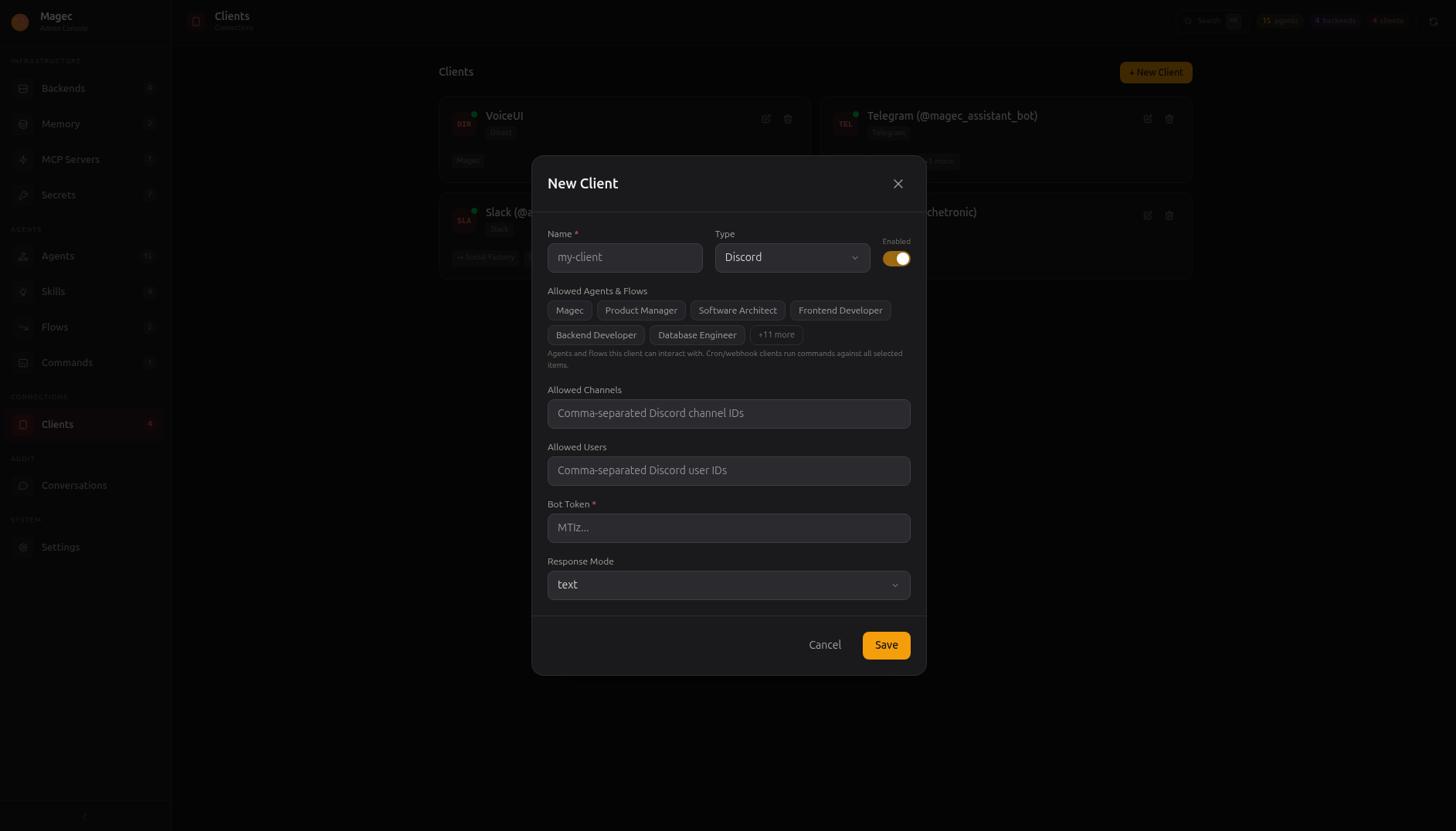
5. Create a Discord Client in Magec #
In the Admin UI, go to Clients → New → Discord:
| Field | Description |
|---|---|
name | Display name for this client |
botToken | The bot token from step 2 |
allowedUsers | Discord user IDs that can use this bot (empty = everyone) |
allowedChannels | Channel IDs where the bot can respond (empty = all channels) |
responseMode | How the bot responds — see Response modes |
allowedAgents | Which agents and flows this bot can access |
6. Start Chatting #
Send a DM to the bot or @mention it in a channel. It responds using the first allowed agent.
How It Works #
The bot opens an outbound connection to Discord — no public URL, no webhook, no ports to expose. It works behind firewalls, NATs, and on your local machine. Only one bot token is needed.
Interaction Modes #
| Context | How it works |
|---|---|
| Direct Messages | Send any message to the bot. It responds inline in the DM — no thread replies, just a clean linear conversation. |
| Channel @mentions | @mention the bot in a channel. It replies to your message. |
In channels, the bot only responds when mentioned. In DMs, it responds to everything.
Response Modes #
| Mode | Behavior |
|---|---|
text | Always respond with text (default) |
voice | Always respond with a voice file |
mirror | Match your format — text replies to text, voice replies to voice |
both | Respond with both text and a voice file |
You can change the response mode at runtime with the !responsemode command.
Voice Messages #
Send a voice message to the bot and it transcribes it. When the response mode includes voice, the bot sends audio responses back.
+ button.Bot Commands #
| Command | Description |
|---|---|
!help | List available commands |
!agent | Show the current agent and list all available ones |
!agent <id> | Switch to a different agent |
!reset | Reset the conversation (start fresh) |
!responsemode | Show the current response mode |
!responsemode <mode> | Change response mode (text, voice, mirror, both, reset) |
Each channel or DM can use a different agent. Use !responsemode reset to go back to the default.
Progress Indicators #
The bot uses emoji reactions to show what’s happening:
| Emoji | Meaning |
|---|---|
| 👀 | Message received |
| 🧠 | Agent is thinking |
| ✅ | Done |
| ❌ | Something went wrong |
Artifacts #
When an agent produces files (images, documents, etc.), the bot sends them as Discord file attachments automatically.
Thread Context #
When you @mention the bot inside a thread, it automatically reads up to 20 previous messages from that thread and includes them as context for the agent. This means the agent can see what other users said in the thread — not just messages directed at the bot.
This only applies to actual Discord threads (public, private, or news threads). In regular channels and DMs, thread context is not injected — the agent relies on its own session history.
Context Metadata #
Magec injects information about the sender into the agent context. You can use these fields in system prompts to personalize responses (e.g., “Address the user by name”):
| Field | Description |
|---|---|
source | Always "discord" |
discord_user_id | User ID of the sender |
discord_username | Username |
discord_name | Display name |
discord_channel_id | Channel or DM ID |
discord_channel_type | "guild" or "dm" |
discord_guild_id | Server ID (channels only) |
Security #
allowedUsers and/or allowedChannels to control who can interact with the bot. Without restrictions, anyone who can DM the bot or see it in a server can talk to your agents — and use any tools those agents have access to.Messages from unauthorized users or channels are silently ignored.
Permissions #
The bot needs these Discord permissions (already included in the invite URL above):
| Permission | What it’s for |
|---|---|
| View Channels | See channels the bot has been invited to |
| Send Messages | Send responses |
| Send Messages in Threads | Reply in threads |
| Read Message History | Access messages for replies |
| Add Reactions | Progress indicators |
| Attach Files | Voice responses and artifacts |
| Send Voice Messages | Voice responses |
Permissions integer: 70643622186048
Multiple Bots #
You can create multiple Discord clients, each with its own bot, allowed users, and agent access. For example:
- A personal bot restricted to your user ID with access to all agents
- A community bot available in specific channels with access to help agents
- A team bot restricted to certain users with access to work agents