Agents
An agent is the core building block of Magec. Each agent is an independent AI entity with its own LLM, personality, memory, voice, and tools. You can think of an agent as a specialized worker — you define who it is, what it knows, what it can do, and how it communicates.
Agents are created and managed entirely from the Admin UI. No config files, no code. Click, configure, save — the agent is live immediately.
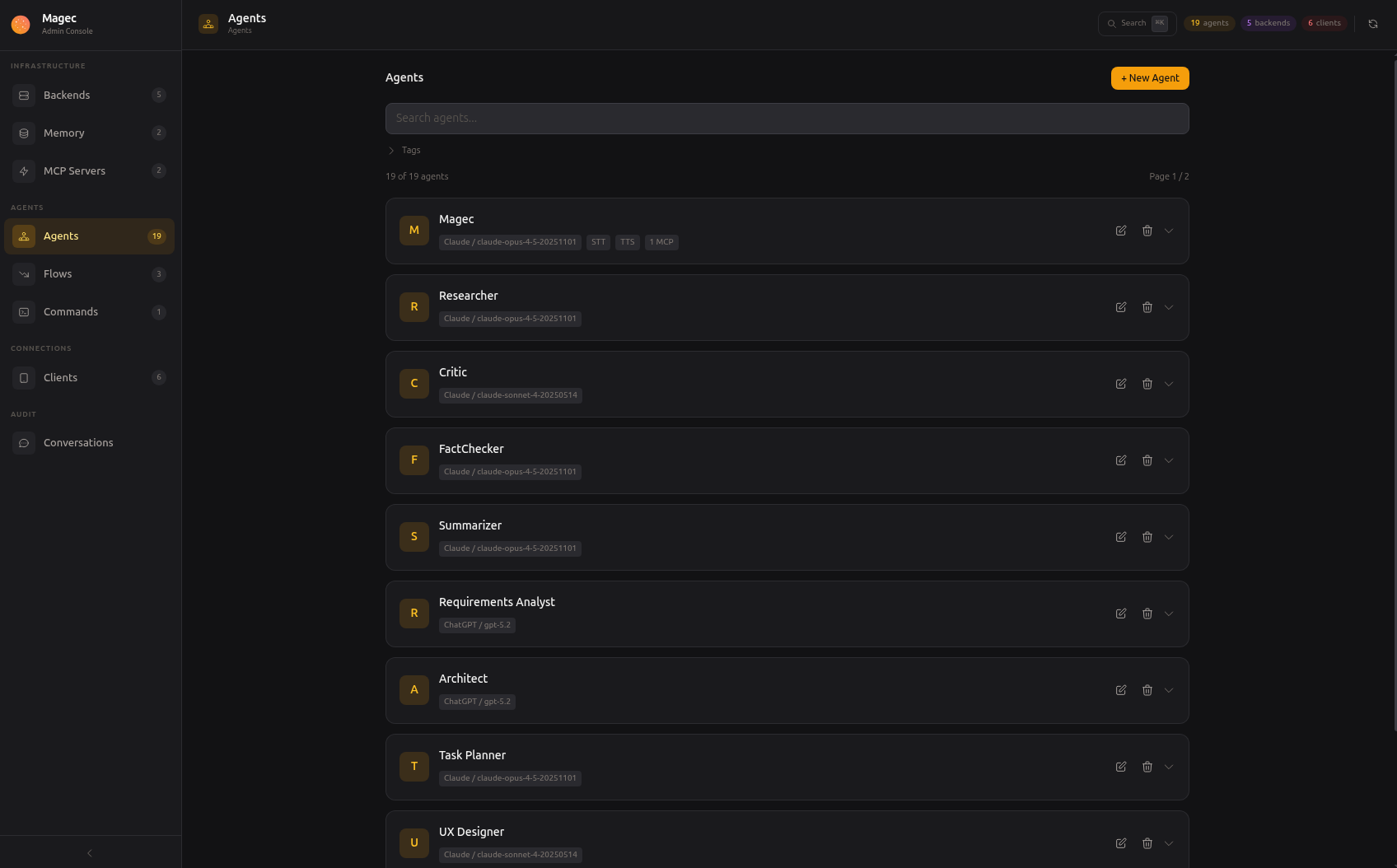
Click any agent to open its configuration. The settings are organized in collapsible sections so you can focus on what matters.
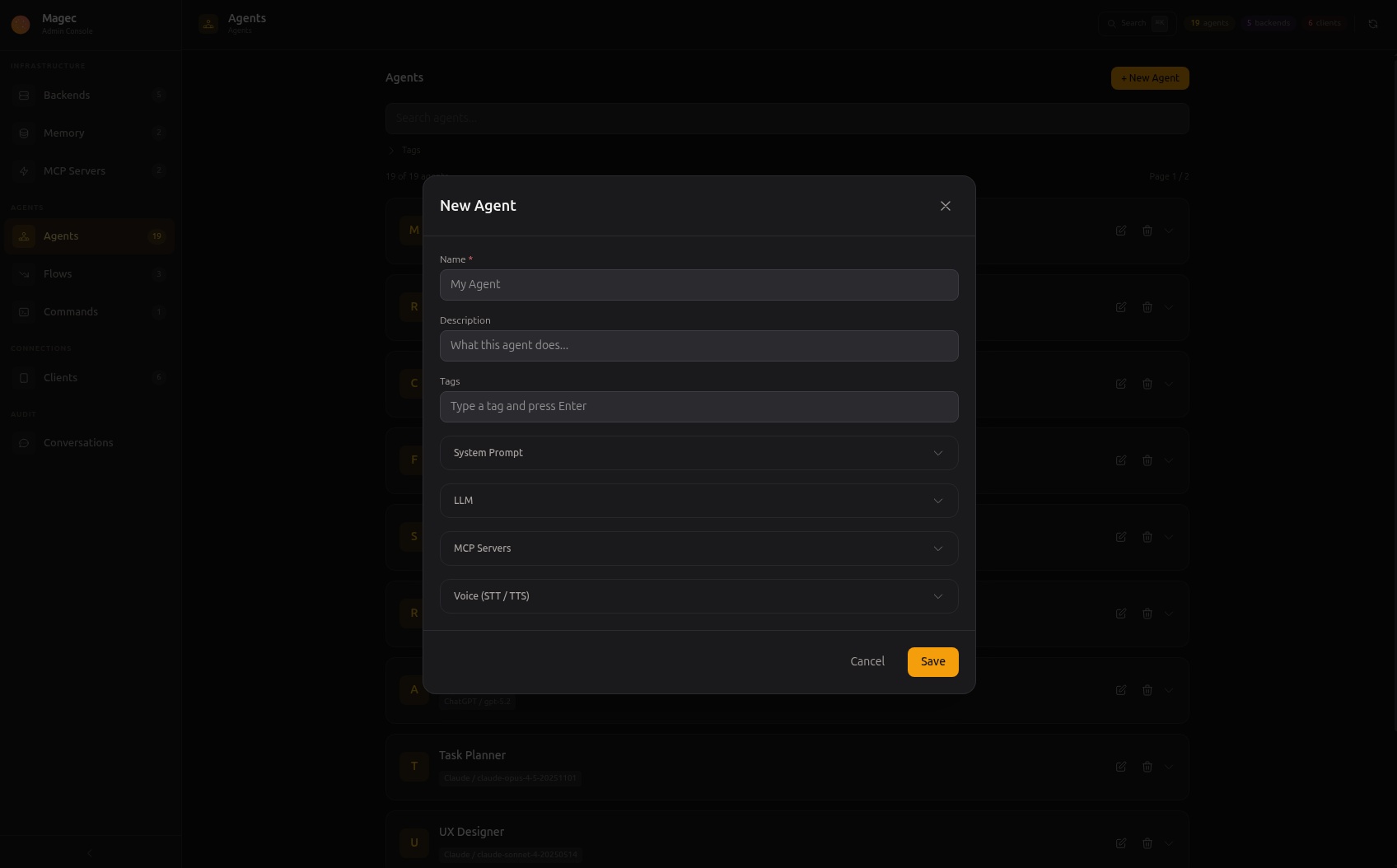
General #
The basics: name, description, and tags.
The name is how this agent appears everywhere in the platform — in the Voice UI agent switcher, in flow step labels, in conversation logs, in the Telegram /agent command. Pick something meaningful.
The description is a note for yourself. It appears in the admin panel to help you remember what this agent is for when you have many of them.
Tags are optional labels for organizing agents. They become useful when you have dozens of agents and want to filter or group them by purpose (e.g., customer-service, internal, research).
| Field | Description |
|---|---|
name | Display name shown across the entire platform |
description | Optional note for your reference |
tags | Labels for filtering and grouping |
System Prompt #
This is the most important field. The system prompt defines who the agent is, how it behaves, what it should and shouldn’t do, and in what style it should respond. Every single response the agent produces is shaped by this prompt.
Write the prompt as instructions to the agent. You can be as detailed as you want — multi-paragraph instructions, examples of desired output, rules, personality traits, language preferences. The more specific you are, the more predictable the agent’s behavior.
Example prompts:
- “You are a home automation assistant. You control lights, thermostats, and appliances via the Home Assistant MCP tools. Always confirm actions before executing them. Respond in Spanish.”
- “You are a code reviewer. Analyze the code provided and give constructive feedback focusing on readability, performance, and potential bugs. Be direct but not rude.”
- “You are a restaurant concierge. You know the menu, daily specials, and allergen information. When customers ask about dishes, be enthusiastic but honest.”
If you leave the system prompt empty, Magec uses a default prompt that makes the agent a general-purpose assistant.
Output Key #
The output key is used when the agent participates in a flow. It saves the agent’s output under a named key in the flow’s shared state. Other agents in the same flow can then reference that output using {{agent.output:key_name}} in their own prompts.
For example, if a “researcher” agent has outputKey: research_results, a later “writer” agent can include {{agent.output:research_results}} in its prompt to access what the researcher found.
| Field | Description |
|---|---|
systemPrompt | The full instruction text. Supports multi-line, markdown, examples, and any formatting you want. |
outputKey | Named key for flow data passing. Other agents in the same flow can reference it with {{agent.output:key_name}}. |
LLM #
Which AI brain powers this agent. You select a backend (the provider connection) and a model (which specific model to use from that provider).
The backend dropdown shows all backends you’ve configured. The model is a free-text field — you type the model identifier exactly as the provider expects it.
| Field | Description |
|---|---|
llmBackend | The AI backend to use (selected from your configured backends) |
llmModel | Model identifier — e.g., gpt-4.1, claude-sonnet-4-20250514, qwen3:8b, gemini-2.0-flash |
Memory #
Memory lets agents remember things between conversations. Without memory, every conversation starts from scratch. With memory, agents can recall what you talked about yesterday, remember your preferences, and build context over time.
Memory in Magec is configured globally — you set up memory providers once (under Memory in the Admin UI), and all agents automatically benefit from them. There’s no per-agent memory selection.
How it works #
When memory providers are configured, every agent gets its own isolated memory space within those shared providers. Think of it like an apartment building: the building (Redis, PostgreSQL) is shared infrastructure, but each agent has its own unit with its own keys — no agent can access another’s memories.
- Session memory (Redis) — Each agent’s conversation history is stored under unique identifiers, so conversations with one agent never bleed into another.
- Long-term memory (PostgreSQL + pgvector) — Each agent builds its own semantic memory over time. Memories saved by your home assistant stay separate from memories saved by your coding assistant.
You don’t need to configure anything on the agent itself. If a session memory provider exists, agents use it. If a long-term memory provider exists, agents get the search_memory and save_to_memory tools automatically.
For details on setting up memory providers (Redis for sessions, PostgreSQL + pgvector for long-term), see Memory.
MCP Servers #
This is where agents become truly powerful. MCP (Model Context Protocol) lets you connect external tools to the agent — file access, web search, database queries, smart home control, GitHub operations, and hundreds more.
Each toggle enables a configured MCP server, giving the agent access to its tools. When the agent decides it needs to perform an action (like turning on a light, reading a file, or querying a database), it calls the appropriate tool through MCP.
An agent with no MCP servers can still chat — it just can’t interact with the outside world. Adding MCP tools is what transforms an agent from a chatbot into something genuinely useful. An agent with Home Assistant MCP can control your house. An agent with GitHub MCP can manage your repositories. An agent with a database MCP can query and report on your data.
The more tools you connect, the more capable your agents become. This is the mechanism that turns Magec from “another chat interface” into a real AI platform.
Skills #
Skills are reusable knowledge packs — instructions and reference files that teach the agent about a specific domain. A return policy skill, a product catalog skill, a coding standards skill. Create them once, toggle them on the agents that need them.
While the system prompt defines who the agent is, skills define what it knows. An agent with a “Return Policy” skill and a “Product Catalog” skill becomes a capable customer support representative without you having to cram everything into one massive prompt.
Skills are especially powerful when shared across agents. Update a product catalog skill once, and every agent that uses it sees the change.
For a deeper comparison of when to use skills vs. creating specialized agents, see Skills vs. Agents.
Context Guard Experimental #
Long conversations eventually hit the model’s token limit and fail. Context Guard watches the conversation size and automatically summarizes older messages before that happens. Recent messages stay untouched.
You set it up per-agent inside the LLM section. Two strategies:
- Token threshold (recommended) — Only compresses when the conversation is actually running out of room. Best for agents with tools or complex tasks.
- Sliding window — Compresses after a fixed number of messages. Simpler and more predictable. Best for basic chatbots.
| Setting | What it does |
|---|---|
| Enabled | Turns Context Guard on or off |
| Strategy | Token threshold (default) or Sliding window |
| Max turns | Sliding window only — how many messages to keep. Default: 20 |
Voice (STT / TTS) #
Voice settings are optional. You only need them if the agent will be used through the Voice UI or if you want voice responses in Telegram.
Each agent can have its own voice configuration, which means different agents can sound different. A customer service agent could use a warm, friendly voice while a technical assistant uses a more neutral one.
Transcription (STT — Speech-to-Text) #
Converts spoken audio into text. The agent needs this to understand what you’re saying through the Voice UI or Telegram voice messages.
| Field | Description |
|---|---|
transcriptionBackend | A backend with a Whisper-compatible STT endpoint (e.g., OpenAI, Parakeet) |
transcriptionModel | Model name — e.g., whisper-1 for OpenAI, or the model name your STT service expects |
Text-to-Speech (TTS) #
Converts the agent’s text responses into spoken audio. Required for the agent to “speak” in the Voice UI or send voice messages in Telegram.
| Field | Description |
|---|---|
ttsBackend | A backend with a TTS endpoint (e.g., OpenAI, OpenAI Edge TTS) |
ttsModel | Model name — e.g., tts-1, tts-1-hd |
ttsVoice | Voice identifier — e.g., alloy, nova, shimmer, echo, onyx, fable |
ttsSpeed | Playback speed multiplier (e.g., 1.0 for normal, 1.2 for slightly faster) |
Hot-reload #
Changes to agents take effect immediately. Edit a prompt, add a tool, change the voice — save, and the next message to that agent uses the new configuration. No server restart, no redeployment.